How to remotely help family with their computer, without teaching them a scammer's script
Pick one free tool, set it up together, and agree on one rule: you never call them to fix the computer. They call you.
The simplest way to remotely help family with their computer is a free tool that's already there: Quick Assist on Windows 10 and 11, or Chrome Remote Desktop on any computer with Chrome. They open it, you send a short code, and they click Allow so you can see their screen. The part that matters more than the tool is the rule around it: they call you, you never call them.
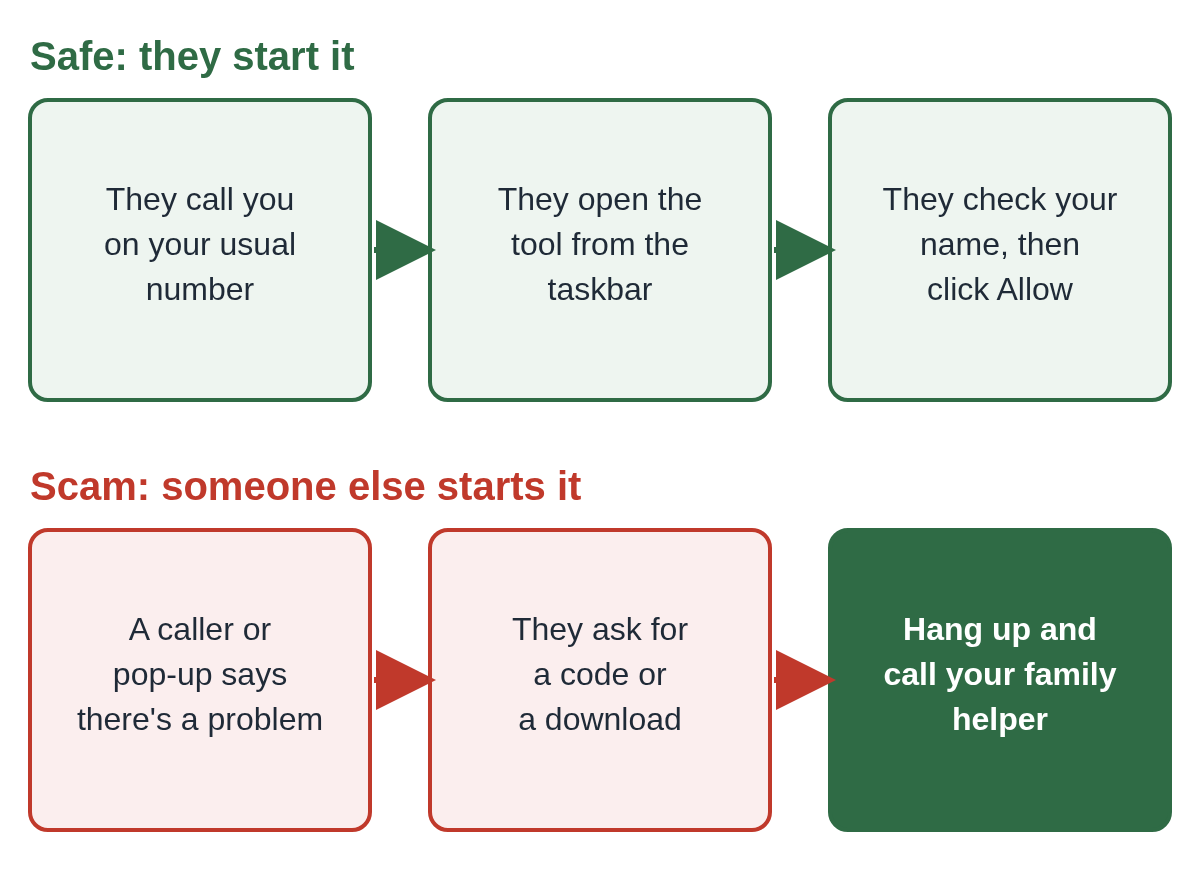
That rule matters because a tech support scam is a copy of what you're about to do. A stranger says there's a problem, sends a code or a download link, and asks your relative to click Allow. If your family member has learned "a helper gives me a code and I let them in", a scammer can use the same steps. So set the tool up in a way they can tell apart from a stranger.
Which tool should I use to help family remotely?
Use the one that's already on their computer, so nobody has to download anything from a link.
- Quick Assist is built into Windows 10 and 11. Microsoft's own documentation says the helper must sign in with a Microsoft account and the person getting help doesn't sign in at all. The helper gets a time-limited security code, the other person types it in and selects Allow, and the helper can then view the screen, draw on it, or ask to take full control, which the other person has to allow again.
- Chrome Remote Desktop works on Windows, Mac, Chromebooks and Linux. Google's help page explains that the person being helped selects Generate Code under Get Support and sends the code to you. The code only works once, they see a box with your email address before choosing Share, and Chrome asks them every 30 minutes whether to keep sharing.
Both tools are fine. Pick one and stick with it, so your relative only ever learns one routine. If you want to know what Quick Assist can and can't do once it's open, see whether Microsoft Quick Assist is safe.
How do I set it up before the first problem?
Do it together, in person or on a video call, on a day when nothing is broken. A calm first run makes the real one easy.
- Open the tool together from the Start menu (type "Quick Assist") or from the Chrome Remote Desktop page they've bookmarked. Pin it to the taskbar so it's always in the same place.
- Do a short practice session. Let them see what your name looks like on the Allow screen.
- Write one line on a sticky note by the computer: "Only [your name] helps with this computer. If anyone else asks, hang up and call [your name]." Put your number on it.
- Agree what you'll say when you call, so they recognize you. If your family already has a family safe word, use that.
What house rules keep scammers from copying me?
A few short rules do most of the work. Say them in your own words.
- They call you. You will never ring out of the blue and ask to get into the computer. If someone does, even someone who sounds like you, they hang up and call you back on the number they already have.
- Nobody else gets a code. Not "Microsoft", not the bank, not the internet company, not Amazon. Microsoft says plainly that it doesn't make unsolicited calls to offer technical support, and that its error messages never include a phone number.
- No downloads from a caller. If someone asks them to install AnyDesk, TeamViewer, UltraViewer or anything else, that's the moment to hang up. Our guide on blocking AnyDesk and TeamViewer requests on a home PC shows how to make that harder.
- No banking while you're connected. You don't need it to fix a printer. If a "helper" wants them to open their bank, it's a scam. The FTC describes scammers asking for remote access and pretending to scan for viruses before asking for money.
- It's fine to hang up on anyone. Including you. You'll call back.
If it helps, print these rules on one page with space for your name and number, and leave it next to the computer.
Printable card: computer help house rules (PDF)
Should I leave remote access installed all the time?
Usually not. Tools that let you connect without anyone at the other end clicking Allow (often called unattended access) are handy, but anything you can get into while they're asleep is something a scammer would love to find already set up.
For most families, a session they start each time is enough. If you do set up permanent access because a parent can't manage the clicks anymore, protect your own account with a strong password and two-step sign-in, because that account is now a key to their computer. Also check now and then that no other remote tools have appeared on their PC. Our guide to protecting an elderly parent's computer when you live far away covers the rest of that setup.
What do I say when I'm the one helping?
Say the same things every time, so anything different stands out.
- "It's me. You called me, right?"
- "Open Quick Assist from the taskbar. I'll read you a code."
- "You'll see my name on the screen. Check it's mine, then click Allow."
- "We're done. Close the window and you'll see I'm gone."
Ending the same way matters. When they see the window close, they learn what a finished session looks like, and a stranger who stays connected will feel wrong.
What if someone else already got in?
If a stranger was on their computer, act straight away: disconnect it from the internet, hang up, call the bank from another phone using the number on the back of the card, and change the email password from a different device. Our two-minute checklist walks through it step by step, and you can report it at ReportFraud.ftc.gov.
More posts like this are in Protecting family.
Questions people ask
Is Quick Assist free?
Yes. It's built into Windows 10 and 11. The helper needs a free Microsoft account; the person getting help doesn't sign in.
Can I help a family member on a Mac with Quick Assist?
No, Quick Assist is for Windows. Chrome Remote Desktop works on Mac, Windows and Chromebooks, so use that if your family has a mix.
Someone called my mom and said they were me. What now?
If she gave them a code or clicked Allow, disconnect the computer from the internet and follow our checklist. Then agree on a family safe word for next time.
Sources
Drafted with AI assistance from public sources, then checked and approved by Thomas Whitmore, Head of Threat Intelligence & Security Research on . See how we work, or tell us about a mistake at support@xcelcor.com.
More on Family and older relatives Remote access scams Scams