What is a passkey? How it works, why it's safer than a password, and how to set one up
A passkey signs you in with the face, fingerprint or PIN that opens your phone or computer. Nothing to type, nothing to read out to a scammer.
A passkey is a way to sign in that replaces your password with the lock you already use on your phone or computer: your face, your fingerprint or your device PIN. There's nothing to type or remember, and nothing a fake website or a caller can talk you out of, because a passkey can't be copied, written down or read out. You can set one up for your Google, Apple or Microsoft account in a few minutes and still keep your password as a backup.
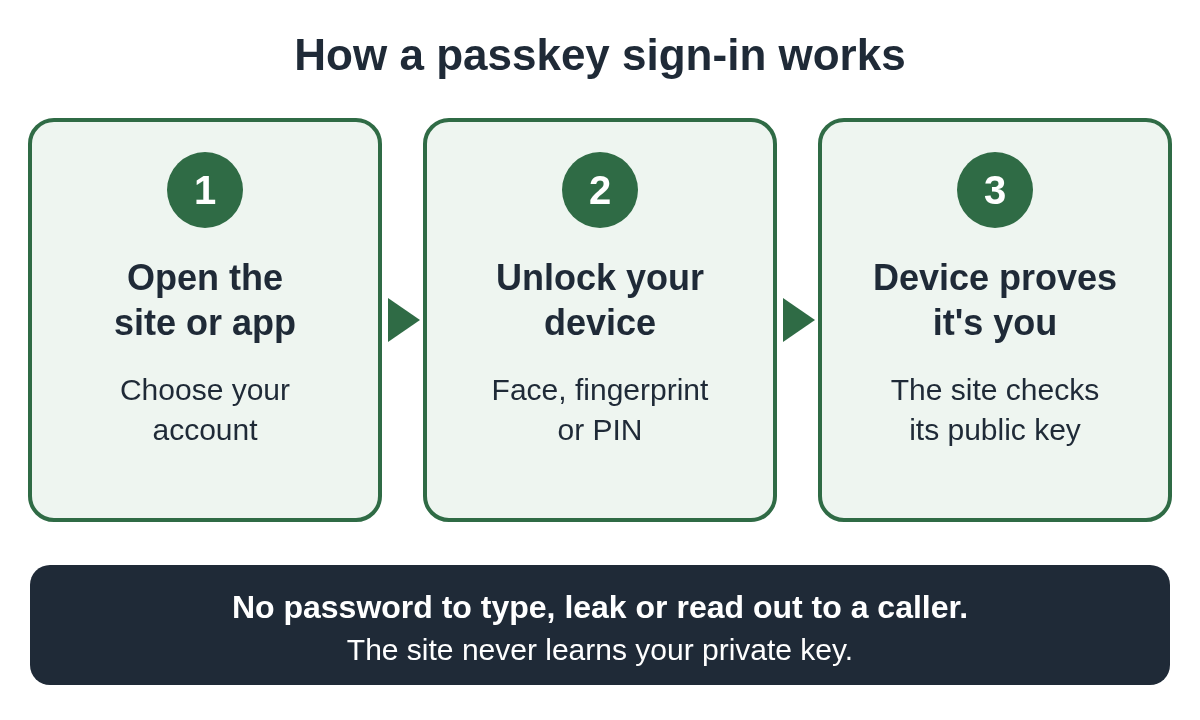
What is a passkey, in plain words?
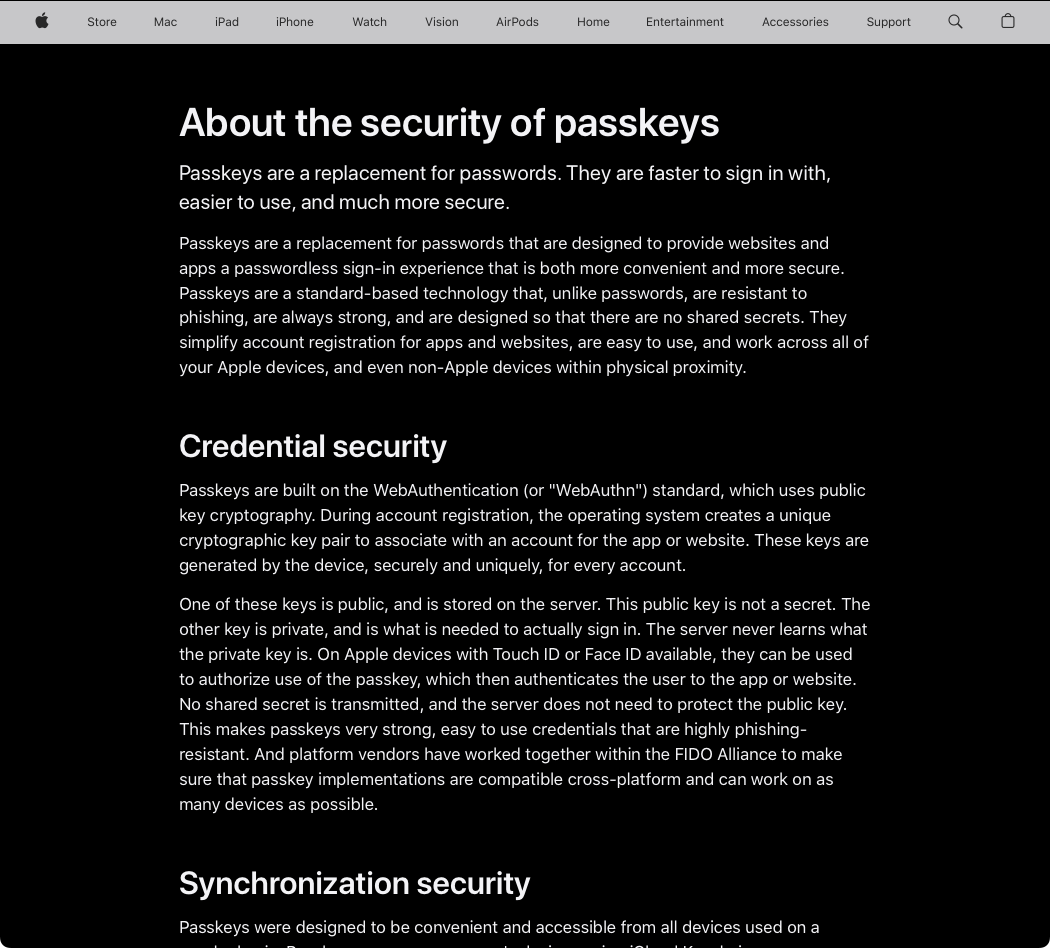
When you create a passkey, your phone or computer makes a matched pair of digital keys for that one account. One key is public and is stored by the website. The other is private and stays behind your face, fingerprint or PIN. Apple's security page puts it simply: "The server never learns what the private key is."
When you sign in, you look at your phone, touch the fingerprint sensor or type your PIN, just as you would to open it and read a message. Your device then proves to the site that it holds the right private key, and the site checks that proof against the public key it stored. No password crosses the internet, and there's no code to copy from a text.
Passkeys are built on open standards from the FIDO Alliance, so the same idea works on iPhone, Android, Windows and Mac, and with many big sites and apps. If a site doesn't offer a passkey option yet, keep using a strong password and two-step sign-in there.
How is a passkey different from a password?
| Password | Passkey | |
|---|---|---|
| How you sign in | You type it | You confirm with your face, fingerprint or device PIN |
| Can it be weak or reused? | Yes | No. Your device makes a new, unique one for each account |
| Can a fake sign-in page or caller get it from you? | Yes, if you type it or read it out | No. There's nothing to type or hand over |
| If the website is breached | Your password, or a scrambled copy of it, can leak | The site only holds a public key, which isn't a secret |
| Where it's kept | In your head, on paper or in a password manager | On your devices, synced by your Apple, Google or Microsoft account or a password manager |
Are passkeys safer than passwords and text codes?
Yes, against the tricks that catch most people. Apple says passkeys "are resistant to phishing, are always strong, and are designed so that there are no shared secrets." Google says passkeys "can't be shared, copied, written down, or accidentally given to someone else," which is what makes them harder to phish.
Passwords get typed into fake sign-in pages and leak in data breaches like the Too Lost breach. Text codes can be read out to someone pretending to be your bank. CISA's advice for small businesses ranks sign-in methods from most to least secure: a security key (a physical form of passkey) "provides the best protection against phishing," and a code sent by text or email "provides the weakest protection" and should be used only if stronger options aren't available.
A passkey can't help if someone else knows your phone's PIN, or if a scammer is controlling your computer through a remote-access app. If a caller asks you to approve a sign-in or read out a code, hang up and call the company on a number you look up yourself. Our guide to help desk social engineering shows how those calls work. If someone is on your computer right now, use our emergency checklist.
How do I create a passkey for my Google account?
Google's help page (checked November 27, 2026) says you need a computer with Windows 10, macOS Ventura or ChromeOS 109 or later, or a phone with Android 9 or iOS 16 or later. The browser needs to be Chrome or Edge 109, Safari 16 or Firefox 122 or later. Turn on your phone's screen lock first, and on iPhone, iPad or Mac turn on iCloud Keychain.
- On your own phone or computer, go to Google's passkeys page and sign in if it asks.
- Tap Create a passkey and follow the prompt.
- Confirm with your face, fingerprint, PIN or pattern when asked.
From then on, Google asks for your passkey first. Your password still works, and adding a passkey doesn't remove any of your recovery options. If you'd rather Google asked for your password first, go to Security & sign-in in your Google Account and turn off Skip password when possible.
To remove one, go to your Google Account, tap Security & sign-in, then under "How you sign in to Google" tap Passkeys and security keys, choose the passkey and tap Remove.
How do I use passkeys on an iPhone?
Passkeys on iPhone need iOS 16 or later, iCloud Keychain turned on and two-factor authentication on your Apple Account. Apple says that if you try to save a passkey without two-factor authentication, your iPhone prompts you to set it up. We checked these steps against Apple's current iPhone User Guide in November 2026.
- In a website or app that offers passkeys, create an account or open the account's security settings and choose the passkey option.
- When your iPhone offers to save a passkey, tap Continue.
- Confirm with Face ID or Touch ID (or your passcode).
Next time you sign in, tap the account name field, choose your account and confirm with Face ID or Touch ID. Your passkeys are kept in the Passwords app and sync to your other Apple devices through iCloud Keychain, so a new iPhone gets them back when you sign in to your Apple Account.
To sign in on a Windows PC with a passkey saved on your iPhone, choose the option to use a phone or another device on the PC's sign-in screen, then scan the QR code with your iPhone's camera.
How do I see and delete passkeys on Windows 11?
Microsoft's passkey page applies to Windows 11. Windows uses Windows Hello (your face, fingerprint or PIN) to protect the passkeys it saves.
- See passkeys saved on the PC: open Settings, then Accounts > Passkeys. You can search, sort and delete them there, using the menu next to each passkey and Delete passkey.
- Choose where passkeys are saved: Accounts > Passkeys > Advanced options, where Save passkeys to this Windows device can be turned on or off.
- Add a passkey to your Microsoft account: sign in at Microsoft's Advanced security options page, choose Add a new way to sign in or verify, then Face, Fingerprint, PIN, or Security Key, and follow the prompts.
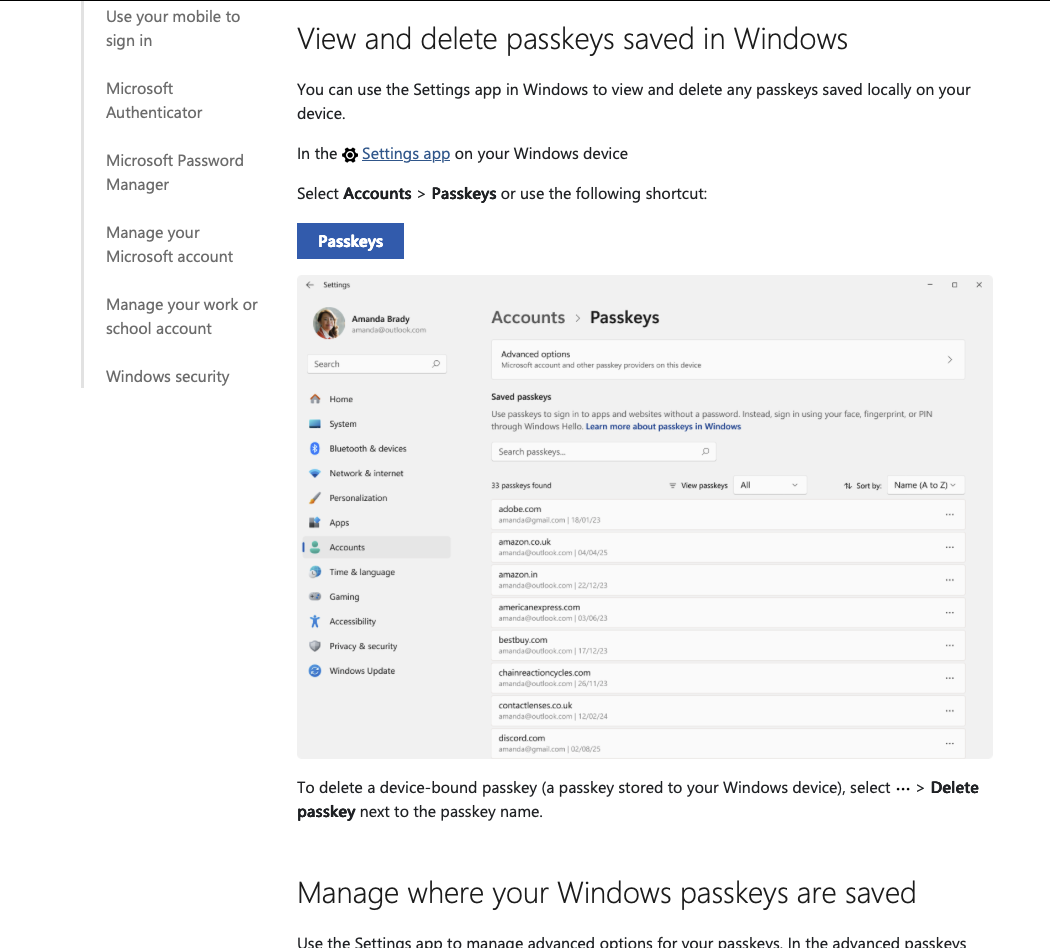
Microsoft's advice before deleting an old passkey: add a new way to sign in first, so you don't lock yourself out. If your PC is from work, your IT person may control these settings.
What happens if I lose my phone?
You don't lose your accounts. Passkeys saved to iCloud Keychain or Google Password Manager come back when you sign in on a new device. Google says that if you lose a device with a passkey on it, sign in to your Google Account on a device you can use and remove that passkey. Keep your account recovery phone number and email up to date, because that's how you get back in if every device is gone.
Should my parent use passkeys?
Often, yes. There's nothing to remember and nothing to read out to a fake "bank fraud department" caller, which makes passkeys a good fit for someone who gets a lot of scam calls. Set them up on your parent's own phone, with a screen lock only they know.
Two cautions from Google's help page. Only create passkeys "on devices you personally own and use," and don't create one on a shared device, because "anyone who can unlock your device can access your Google Account." So don't save your parent's passkey on a family tablet, and don't save yours on their phone. If you're talking it through with them, our guide on how to talk to elderly parents about scams has wording that helps, and how to remotely help family with their computer covers helping from a distance.
More on keeping accounts safe is on our passwords and accounts page.
Questions people ask
Where are my passkeys stored?
On your devices. On iPhone and Mac they're in the Passwords app and sync through iCloud Keychain. On Android and in Chrome they're usually in Google Password Manager. On Windows 11 you can see the ones saved on the PC in Settings > Accounts > Passkeys.
Can I still sign in with my password after creating a passkey?
Usually, yes. Google says adding a passkey doesn't remove your password or recovery options, and you can turn off "Skip password when possible" if you want the password asked for first.
Is it safe to create a passkey on a shared computer or tablet?
No. Google warns that anyone who can get past that device's screen lock can get into your account with the passkey, even after you sign out. Only create passkeys on devices you personally own and use.
Sources
- Apple: About the security of passkeys
- Apple iPhone User Guide: Use passkeys to sign in to websites and apps
- Google Account Help: Sign in with a passkey instead of a password
- Microsoft Support: Manage your saved passkeys
- Microsoft Support: Create and save a passkey
- CISA Secure Our World: Require multifactor authentication
- FIDO Alliance: Passkeys
Drafted with AI assistance from public sources, then checked and approved by Dana Cross, Head of Trust & Digital Safety on . See how we work, or tell us about a mistake at support@xcelcor.com.
More on Passwords and accounts Privacy Family and older relatives Scams