Is Microsoft Quick Assist safe? What it lets a helper do, and when to say no
Quick Assist is a genuine, encrypted Microsoft tool. It's only as safe as the person you hand the controls to, and who started the contact.
Yes, Quick Assist itself is safe. It's a genuine Microsoft app that comes with Windows, the connection is encrypted, and nobody can get in unless you type in their code and click Allow. The risk is the person on the other end: once you give them control, they can do anything on your PC that you can.
So the real question is who you're letting in. Microsoft's own advice is to only let a helper connect if you started the contact yourself, by calling Microsoft Support or your own IT team.
What can someone do with Quick Assist?
Quick Assist lets a helper see your screen, draw on it to point things out, or take full control of your mouse and keyboard. Microsoft describes it as a way for support staff to troubleshoot and fix problems directly on your device.
With control, the helper has the same permissions you do. Microsoft says that in some cases you'll still have to answer a Windows permission prompt (User Account Control), but otherwise they can open files, change settings and install programs as if they were you. Microsoft's own page puts it plainly: anyone with control of your device can install malicious applications or damage it.
How does a Quick Assist session start?
Every session goes through the same steps, and you have to agree twice.
- The helper opens Quick Assist, chooses Help someone, and signs in with a Microsoft account. Quick Assist gives them a 6-digit security code that only works for a short time.
- They tell you the code, usually over the phone. You open Quick Assist (Ctrl + Windows key + Q), type the code under Get help, and click Submit.
- A box asks if you want to share your screen. Nothing happens until you click Allow.
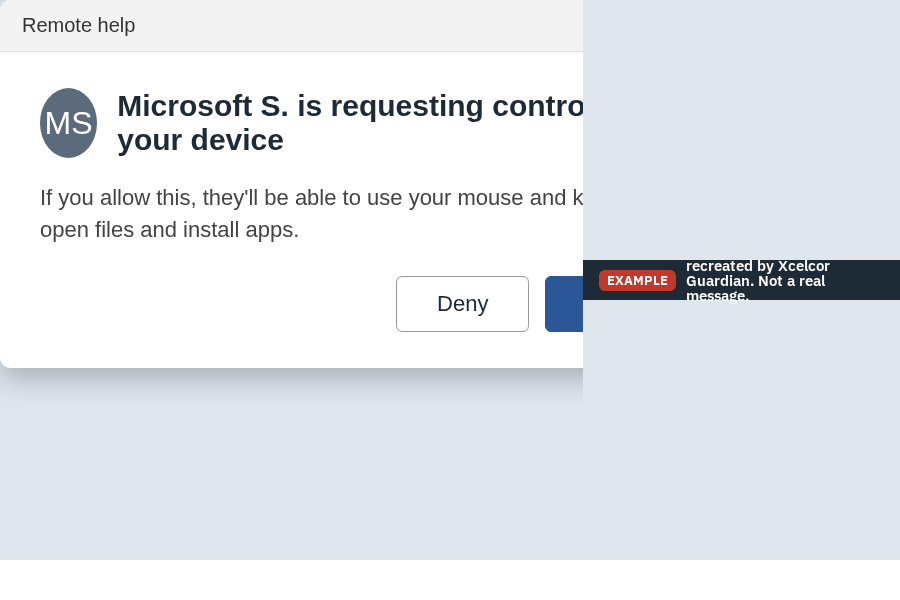
- If the helper wants to control your PC, they click Request control, and you get a second box to Allow or Deny.
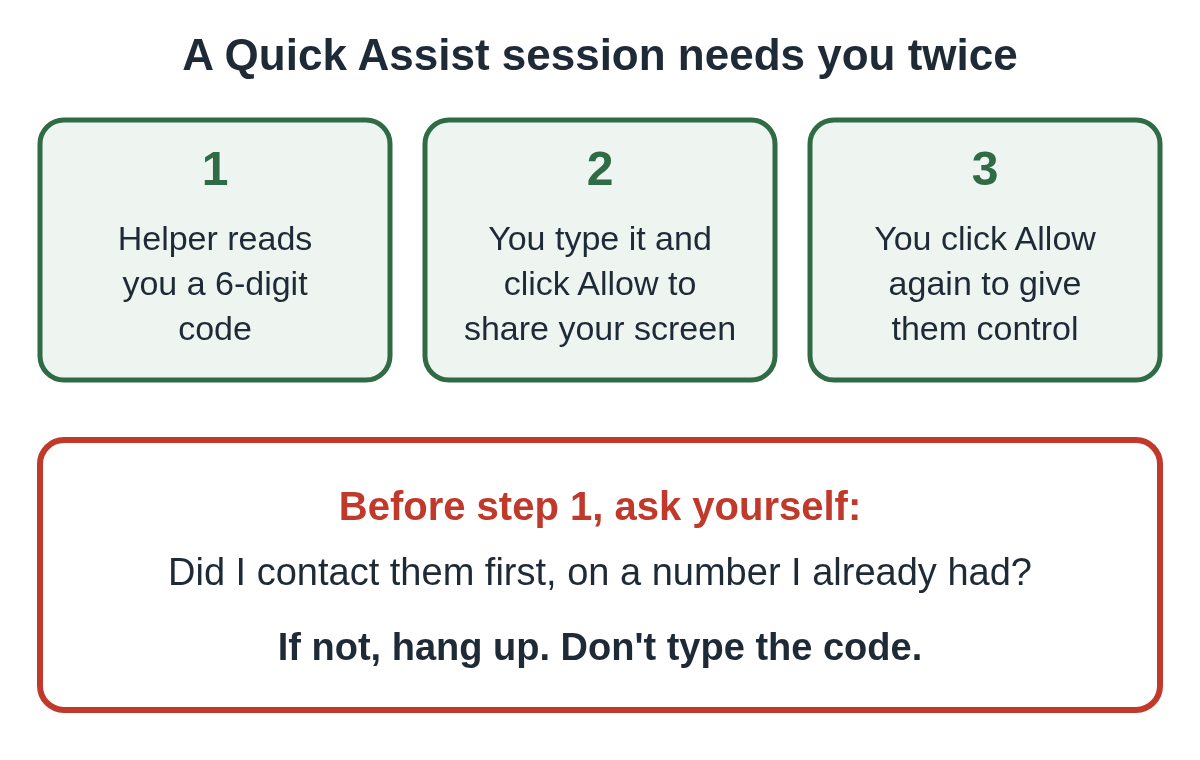
This is why nobody can use Quick Assist to get into your PC by chance. It's also why scammers spend their whole call talking you through those clicks.
Is Quick Assist encrypted?
Yes. Microsoft says Quick Assist connects through its Remote Assistance Service over the standard secure web port (443), and the traffic is encrypted with TLS 1.2.
Microsoft also says it can't watch a session or see what's typed in it. It keeps a small amount of data about each session, such as start and end times and errors, and doesn't store data about you or the helper for longer than three days. No logs are kept on either computer.
Encryption keeps outsiders from listening in. It does nothing about the person you invited. A scammer in an encrypted session is still in.
The name in the box doesn't prove who they are
When a helper connects, you only see a short version of their name: first name and last initial. Microsoft says you get no other information about them.
That matters, because anyone can create a Microsoft account with any name. "Microsoft Support" or "Help Desk" in that box means nothing. A real Microsoft agent and a scammer look the same on your screen.
When is Quick Assist not safe?
It isn't safe when someone you didn't contact asks you to open it. The FTC says legitimate tech companies won't contact you by phone, email or text about a problem with your computer, and that real security pop-ups never ask you to call a phone number. Microsoft says the same about itself: it will only ask for access to your device if you contacted it first.
The signs that a session isn't safe:
- They called you, messaged you, or a pop-up told you to call them.
- They say there's a virus, a hacker, a refund or a problem with your bank.
- They read you a code and ask you to click Allow, then Allow again for control.
- They tell you the warning on the screen is normal and to ignore it.
- Once connected, they ask you to log in to your bank or email.
If a pop-up started it, see our alert on the fake Microsoft Defender pop-up. If a caller already has your code, read what to do if a caller asked for your Quick Assist code.
Why do scammers use Quick Assist?
Because there's nothing to download. Quick Assist is already on most Windows PCs, it carries the Microsoft name, and it opens with one keyboard shortcut. That makes the request feel official and saves the scammer from walking you through a download.
Microsoft has described one criminal group, which it calls Storm-1811, using exactly this. The group flooded people's work inboxes with sign-ups for email newsletters, then phoned them pretending to be IT support and offered to fix the "spam problem" through Quick Assist. Microsoft wrote that the target only had to press Ctrl + Windows key + Q and enter the code the caller gave them. Once the person allowed control, the group installed other remote tools such as ScreenConnect and NetSupport Manager, and in some cases went on to spread Black Basta ransomware through the company network. Later, the same group also reached people through Microsoft Teams messages from accounts with names like "Help Desk."
Our post on Microsoft Teams IT help desk scams covers that version in detail.
Is Quick Assist safe for businesses?
It works, but Microsoft itself suggests something else for organizations. If your company uses Microsoft Intune, Microsoft recommends Remote Help instead, because it limits who can give support by role, checks that devices are trusted, and keeps session logs for review. Quick Assist has none of those: any Microsoft account can be a helper, and no logs are kept on the devices.
If your organization doesn't use Quick Assist, Microsoft calls removing or disabling it a best practice. It gives two ways:
- Uninstall it for all users with PowerShell, run as administrator:
Get-AppxPackage -Name MicrosoftCorporationII.QuickAssist | Remove-AppxPackage -AllUsers - Block traffic to remoteassistance.support.services.microsoft.com, its main service address. Microsoft notes this also breaks Remote Help, which uses the same address.
For home PCs, our guide on how to turn off Quick Assist on Windows 11 Home walks through removing it from Settings.
What to do if a stranger connected with Quick Assist
If someone you don't know is in your PC right now, click Leave in the Quick Assist window, or turn off Wi-Fi or unplug the network cable if you can't. Then hang up.
Next, call your bank from another phone using the number on the back of your card, and change your email password from a different device. A scammer with control may have installed a second remote tool to get back in later, so check Settings, then Apps, then Installed apps for anything new. Follow our two-minute checklist for the rest.
You can report it to Microsoft at microsoft.com/reportascam, to the FTC at ReportFraud.ftc.gov, and to the FBI at ic3.gov.
How to use Quick Assist safely
Quick Assist is a good way for family to help each other. These habits keep it that way:
- Only use it with someone you contacted first, on a number you already had.
- Never type in a code from someone who called you.
- Say no to Request control unless you know exactly who it is and why.
- Don't log in to your bank or email while someone is connected.
- If nobody in the house uses it, uninstall it. You can reinstall it from the Microsoft Store if you need it.
If you want another check in place, Xcelcor Guardian holds new Quick Assist, AnyDesk, TeamViewer and ScreenConnect connections on a Windows 11 PC until the account holder approves them by email or on our website. It lowers the risk of a caller getting in, but it isn't antivirus and won't catch every scam. See how it works at home, or Guardian for business if you look after staff PCs.
More posts on remote support tools are on the remote access hub.
Questions people ask
Can someone use Quick Assist without me knowing?
Not on its own. Every session needs a fresh code that you type in and an Allow click on your screen, and control needs a second Allow. A scammer who had control could have installed a different remote tool, though, so check your installed apps if a stranger was connected.
Does Microsoft call you and ask you to open Quick Assist?
No. Microsoft says it never makes unsolicited calls or sends unsolicited emails asking for access to your device. It only asks if you contacted Microsoft Support first.
Should I uninstall Quick Assist?
If nobody uses it to help you, yes. Open Settings, then Apps, then Installed apps, find Quick Assist, choose the three dots and Uninstall. See how to turn off Quick Assist on Windows 11 Home.
How do I end a Quick Assist session?
Click Leave in the Quick Assist window. To take back control but keep sharing, click Cancel control. If you can't do either, disconnect from the internet.
Sources
Reviewed by Thomas Whitmore, Research & Strategy, on .
Last updated