Microsoft Teams IT help desk scams: how the fake support chat works and how to shut it down
Attackers message staff from another Teams tenant, pose as IT, and ask for a Quick Assist session. Here is the chain and the settings that break it.
A Microsoft Teams IT help desk scam starts with a chat or call from someone outside your organization who claims to be your IT team. They say there's a security update, a spam filter fix or an account problem, and they ask the employee to open Quick Assist and read out a code. Once the employee clicks Allow, the attacker has hands-on control of a company PC, and Microsoft says the follow-up activity is hard to tell apart from normal IT work.
Microsoft described this pattern in detail in an April 18, 2026 report and again in a September 2, 2026 report. Both make the same point: this isn't a bug in Teams. It works because a person is talked into overriding warnings and granting access.
How does the fake help desk chat start?
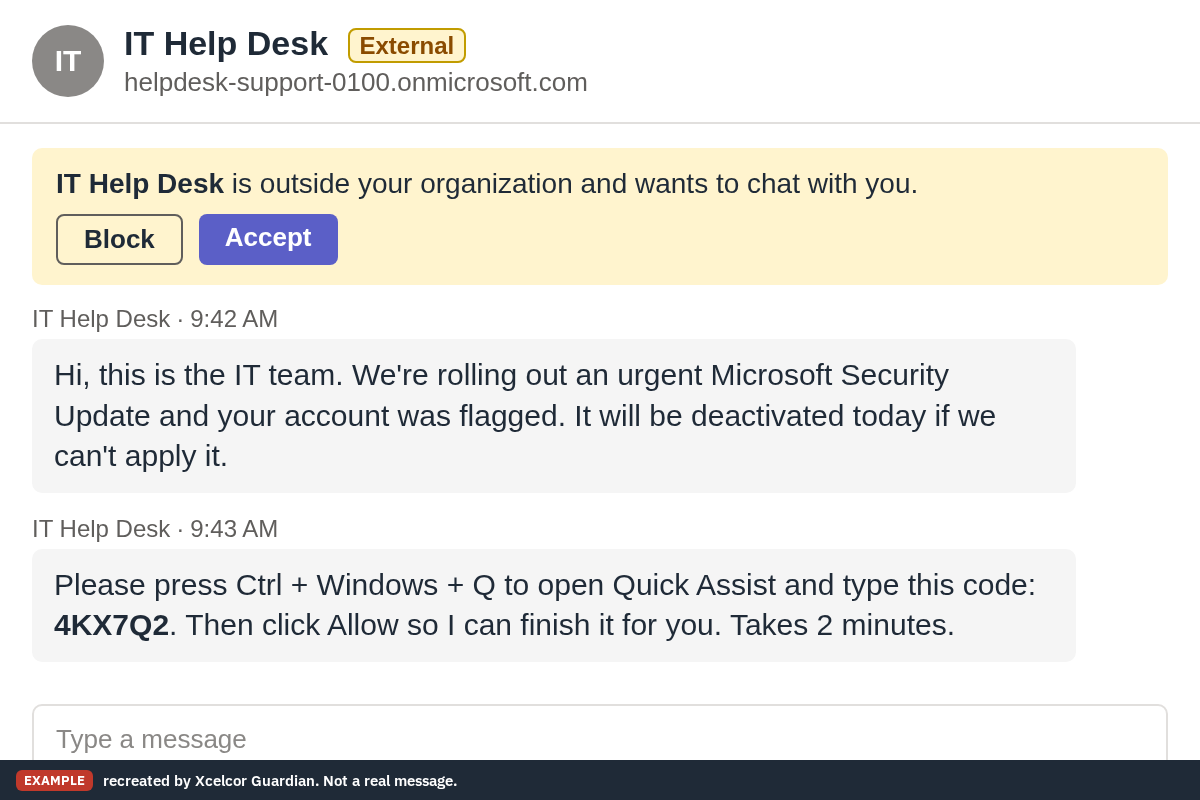
The attacker runs their own Microsoft 365 tenant and contacts your users from it, using a display name like "Help Desk" or "IT Support". Microsoft lists the lures it has seen as "Microsoft Security Update", "Spam Filter Update" and "Account Verification", plus warnings that an account will be deactivated unless the user acts.
Teams does show signs that the contact is from outside. First-contact messages from another tenant come with an Accept or Block prompt, and external chats carry an external label. The attacker's job in the first minute is to get the employee past those signs. Some campaigns switch to a voice call so the instructions never appear in the chat log.
What happens after the employee says yes?
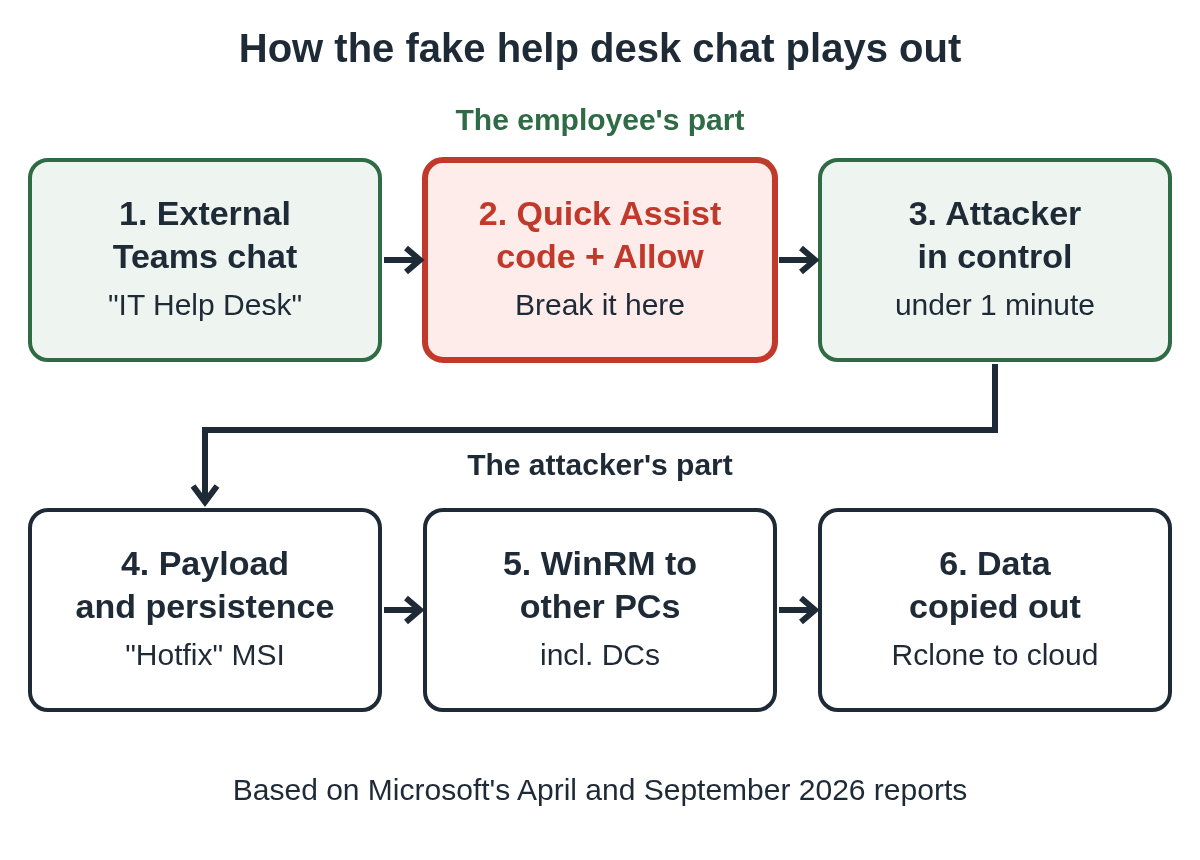
The caller asks the employee to open Quick Assist (Ctrl + Windows + Q), enter a short code and click Allow, then approve "Request control". Microsoft says this often takes under a minute, and that a command prompt or PowerShell usually opens right after.
From there, the two reports describe the same shape:
- The attacker checks the user's privileges, domain membership and what the PC can reach on the network.
- They drop a small payload. In the April cases it was placed in folders like ProgramData and run through trusted, signed programs by DLL side-loading. In the September cases PowerShell downloaded an MSI with an update-style name (for example "Hotfix") and installed it silently.
- They set up persistence. In the September cases this was a Run key or a Startup shortcut named "EdgeUpdate".
- They move to other domain-joined machines with Windows Remote Management (WinRM), including domain controllers.
- In the April cases, they copied chosen data out to cloud storage with Rclone or a similar sync tool.
Microsoft notes that the attacker often doesn't send a link in the chat at all. They open the download page themselves during the remote session, so there's nothing in Teams for link scanning to catch.
Why does it work on careful people?
It borrows the one voice employees are trained to trust and follow: IT. The message arrives inside a work tool, not a suspicious email, and it comes with a deadline ("your account will be deactivated"). The attacker keeps the employee busy and on the line, so there's no pause to check.
It's the workplace version of fake Microsoft support calls, with the company's own help desk as the borrowed name. Microsoft says the activity doesn't come from a weakness in Teams, which means patching alone won't close it.
How do you stop Teams help desk impersonation?
These are the controls Microsoft recommends in its two reports and in its Quick Assist documentation. Most take an afternoon.
Restrict external Teams access
In the Teams admin center, go to Users, then External access, and choose "Allow only specific external domains". Add the partners and vendors you actually work with. By default all external domains are allowed, so this is the single biggest change. Some tenants show this page under External collaboration instead. See Microsoft's page on managing external meetings and chat.
If you can't allowlist, keep the external labels and Accept or Block prompts turned on and make sure staff know what they look like.
Remove or block Quick Assist where you don't use it
Microsoft's Quick Assist documentation says to disable or remove it if you use another support tool. You can uninstall it for all users with PowerShell as Administrator:
Get-AppxPackage -Name MicrosoftCorporationII.QuickAssist | Remove-AppxPackage -AllUsers
Or block traffic to remoteassistance.support.services.microsoft.com. Be aware that blocking this endpoint also breaks Intune Remote Help, which uses it. For in-house support, Microsoft suggests Remote Help instead, because it keeps sessions inside your tenant and logs them. Our guide to Quick Assist scams covers the same tool from the employee's side.
Give the help desk a way to prove who it is
Microsoft recommends a verbal authentication phrase between the help desk and staff, and a written note of how IT actually contacts people (which channel, which accounts). The rule for staff is short: if IT reaches out first and asks for remote access, end the chat and call the help desk back on the number you already have.
Limit what a hijacked session can reach
- Restrict WinRM to authorized management workstations and alert on WinRM from user-context processes.
- Turn on attack surface reduction rules in block mode, and use Windows Defender Application Control to stop DLL side-loading from ProgramData and AppData.
- Require MFA and compliant devices through Conditional Access, especially for admin roles.
- Turn on Safe Links for Teams and zero-hour auto purge in Defender for Office 365.
- Watch for Rclone or similar sync tools appearing on endpoints.
Control every remote tool, not just Quick Assist
Microsoft's September report says attackers also use commercial remote management tools. The same trick works with AnyDesk, TeamViewer and ScreenConnect, and email lures do the same thing. See our alert on the Power BI "Download Reference" email that installs ScreenConnect and our guide to ScreenConnect scams.
What to do if an employee already allowed a session
Treat it as an intrusion, not a user mistake. Microsoft's advice is to assume the attacker reached the network through that host.
- Disconnect the PC from the network.
- Rotate every credential reachable from that machine, including domain admin accounts if it was domain-joined.
- Look for new MSI installs, Run keys or Startup items (Microsoft named "EdgeUpdate"), and unexpected WinRM sessions from that host.
- Check for remote tools that weren't there before.
- Thank the employee for reporting it. People who feel blamed stop reporting.
For a personal machine, the steps on our two-minute checklist apply.
Where Guardian fits
Xcelcor Guardian is a Windows 11 app that holds every new remote connection (Quick Assist, AnyDesk, TeamViewer, ScreenConnect, RDP and others) until someone you choose approves it by email or on xcelcor.com. The PC itself only gets a Refuse button, so an employee on a convincing call can't wave the session through alone. It lowers the risk from this kind of attack; it doesn't replace the Teams and endpoint settings above, and it isn't antivirus. See Guardian for business, or the MSP program if you manage clients.
More posts for admins are on the IT and help desk hub.
Questions people ask
Is the Teams help desk scam a vulnerability in Microsoft Teams?
No. Microsoft says it doesn't come from a weakness in Teams. The attacker relies on a person accepting an external chat and granting remote access.
Does Microsoft or our IT team contact people first on Teams to ask for remote access?
Microsoft says it never makes unsolicited contact to ask for access to your device. Ask your own IT team how they reach staff, and call them back on a known number if you're unsure.
Should we uninstall Quick Assist?
If you use another support tool, Microsoft's documentation recommends disabling or removing it. Intune Remote Help keeps sessions inside your tenant and logs them.
Can we block chats from other Teams organizations?
Yes. In the Teams admin center, set External access to allow only specific external domains, and add the partners you work with.
Sources
- Microsoft Security Blog: Cross-tenant helpdesk impersonation to data exfiltration (April 18, 2026)
- Microsoft Security Blog: Impersonating IT support (September 2, 2026)
- Microsoft Learn: Use Quick Assist to help users
- Microsoft Learn: Manage external meetings and chat in Teams
- BleepingComputer: Microsoft Teams increasingly abused in helpdesk impersonation attacks
Reviewed by Thomas Whitmore, Research & Strategy, on .
Last updated