Windows Defender alert: real or fake? How to tell in 30 seconds
What a real Microsoft Defender notice looks like, what the fake browser warning does, and a quick way to check which one you have.
If a Windows Defender warning fills your screen, plays an alarm and gives you a phone number to call, it's fake. A real alert from Microsoft Defender comes from the Windows Security app, shows up as a small notice in the corner of the screen or inside that app, and never asks you to call anyone. If the warning is inside your web browser, shows a number, or tells you not to restart, it's a web page dressed up as Windows.
Not sure which one you're looking at? The quick check further down takes about 30 seconds, and none of it means touching the warning itself.
What does a real Windows Defender alert look like?
Microsoft Defender Antivirus is built into Windows 10 and Windows 11. It's part of the Windows Security app, which you can open by searching for "Windows Security" in the Start menu (Microsoft).
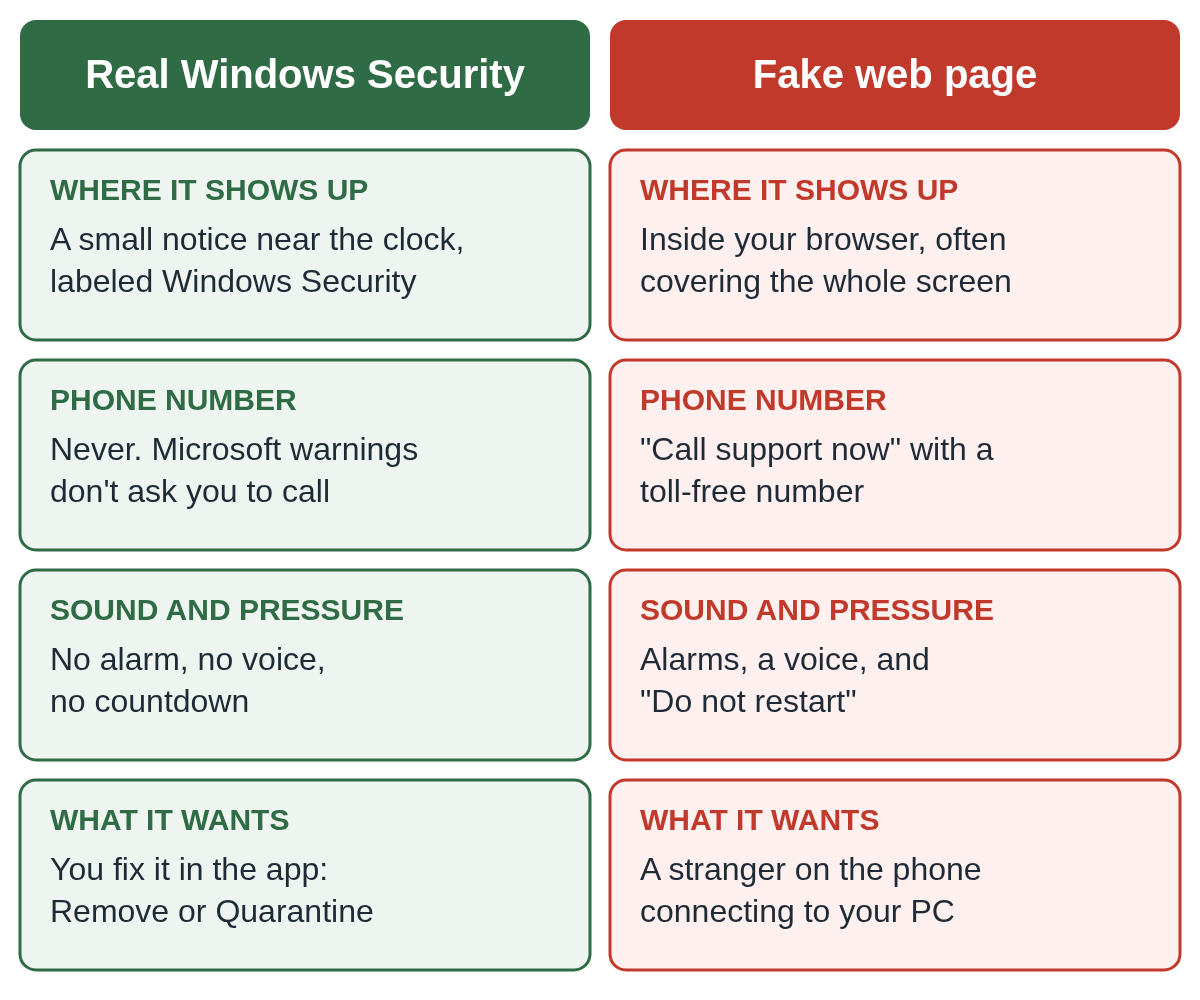
When Defender finishes a scan or finds something, it shows a small notification that slides in near the clock and is labeled Windows Security. It's also listed in the notification panel, and every detection is kept under Protection history inside the Windows Security app. Microsoft says some of these notices are purely for information, and that you'll always get a notification when a problem needs you to act.
Even when Defender does find something, the fix happens inside the app, with buttons such as Remove or Quarantine. It doesn't send you to a website, play a siren or ask for a phone call. Microsoft's own advice is plain: real Microsoft error and warning messages never include a phone number to call (Microsoft).
What does a fake Windows Defender alert look like?
The fake one is a web page. It opens in Chrome, Edge or Firefox, often after you click an ad or mistype a web address. To look like Windows, it borrows names such as "Windows Defender Security Warning" or "Microsoft Defender Security Center" and a shield picture.
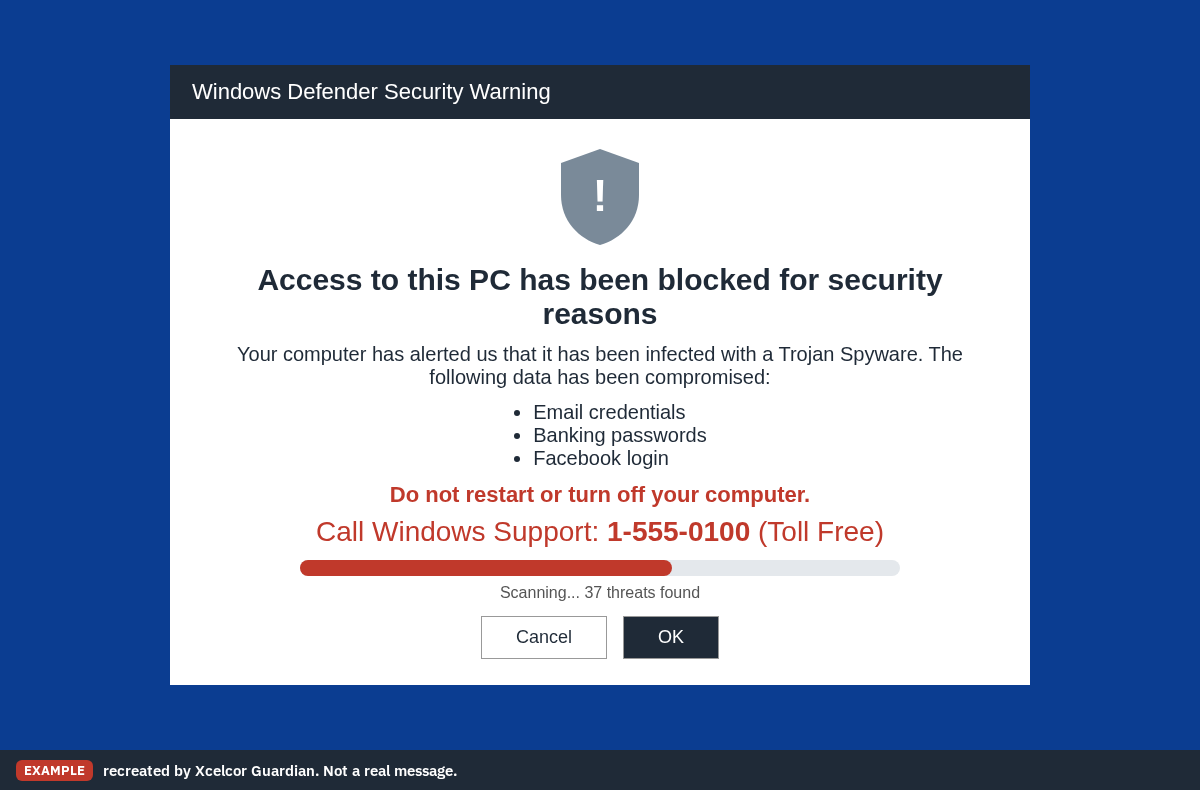
The tell-tale signs:
- It's inside your browser, even if the browser has switched to full screen so you can't see the tabs or the address bar.
- It shows a phone number and tells you to call "support" right away.
- It says not to restart or turn off your computer.
- It plays an alarm or a recorded voice.
- It shows a scan running, a list of "threats", or your IP address to seem official.
The FTC puts it simply: security pop-up warnings from real tech companies will never ask you to call a phone number (FTC).
Real or fake: side by side
If you only remember one row from this picture, make it the phone number.
Why the fake warning feels so real
The page is built to make a working computer look broken, so you'll call before you think. Look for the scammer's playbook, because it repeats from one version to the next:
- Borrowed authority. The Defender name, a shield and Microsoft colors. Nothing in the page comes from Microsoft.
- Urgency. Alarms, countdowns and "call immediately".
- A trap that isn't real. In a campaign reported in September 2026, security researchers at Netskope found the page switched the browser to full screen on your first click, hid the mouse pointer, ignored a quick press of Escape and made the browser lag (Netskope). It felt locked. It wasn't. Windows itself was untouched. We wrote that one up as the fake Microsoft Defender Security Center pop-up.
- Keeping you on the line. The number on the screen goes to people, not to Microsoft. Their next step is almost always to ask you to install a remote access program like AnyDesk or Quick Assist, then to "fix" a problem that was never there and charge you for it.
Is it a pop-up or a website notification?
There's a third kind of warning that confuses a lot of people. If you once clicked Allow when a website asked to "show notifications", that site can send messages that slide in near the clock, just like a real Windows notice, even when the site isn't open.
These usually show your browser's name (Microsoft Edge or Google Chrome) and a web address, not Windows Security. If they say your PC is infected, they're fake too. Turn them off in your browser's settings, under site permissions and Notifications, as our guide on the fake Microsoft pop-up that says "call this number" explains.
How to check in 30 seconds
- Don't call the number or click anything on the warning, including its "close" or "cancel" buttons.
- Close the browser. Press Ctrl + Shift + Esc to open Task Manager, click your browser and choose End task. If the screen won't respond, hold the power button until the PC turns off. Restarting is safe.
- Open the Windows Security app yourself from the Start menu. Go to Virus & threat protection and run a Quick scan.
- While you're there, open Protection history. A real Defender warning leaves a record there. A fake web page doesn't.
If the scan finds nothing and Protection history is empty, the warning was only a web page. When you reopen your browser, don't restore the old tabs. The FTC's advice is the same: if you're worried, update your security software and run a scan, rather than calling a number from a pop-up.
I already called the number. What now?
This happens to careful people every day, and it isn't too late. If you're still on the call, hang up. If you let them connect to your computer or gave them card or bank details:
- Disconnect the PC from the internet (unplug the cable or turn off Wi-Fi).
- Call your bank from another phone, using the number on the back of your card.
- Change your email password from a different device.
- Follow our two-minute checklist, then read what to check after someone remotely accessed your computer.
You can report it at ReportFraud.ftc.gov and tell Microsoft at microsoft.com/reportascam. Include the phone number the warning showed.
Lowering the risk next time
A fake warning can't do much on its own. The damage starts when someone at the PC lets the caller connect. Xcelcor Guardian is a Windows 11 app that holds every new remote connection (AnyDesk, TeamViewer, Quick Assist, ScreenConnect and others) until the account holder approves it by email or on xcelcor.com, so a caller can't get in on the strength of a pop-up alone. It doesn't block the pop-up, and it works alongside Windows Security rather than replacing it. It lowers the risk; it doesn't stop every scam. See how Guardian works.
For more on how these tricks are put together, see our tech support scam guide and the rest of our scams Insights.
Questions people ask
Does Windows Defender ever give you a phone number to call?
No. Microsoft says its real error and warning messages never include a phone number. A Defender warning with a number on it is a scam.
Is it safe to restart my computer when a fake Defender warning won't close?
Yes. The message telling you not to restart is part of the trick. Hold the power button if nothing else works, and don't restore the old browser tabs afterward.
I clicked the fake warning but didn't call. Is my PC infected?
Usually not. It's a web page, not a real scan. Open Windows Security from the Start menu and run a Quick scan to be sure, and remove any browser extension you didn't add.
How do I see my real Windows Defender alerts?
Open the Windows Security app from the Start menu, then Virus & threat protection, then Protection history. Every real detection is listed there.
Sources
- Microsoft Support: Avoid tech support scams
- Microsoft Support: Stay protected with the Windows Security app
- Microsoft Support: Windows Security app settings (notifications)
- FTC: How to spot, avoid, and report tech support scams
- Netskope Threat Labs: A Fake Security Locker, Delivered by Google Ads (Sept 24, 2026)
Reviewed by Kevin Mercer, Site & Ops, on .
Last updated