How to block unauthorized RMM tools before a phishing email installs one
Phishing emails now install signed remote tools instead of malware. Here's how to allow one RMM tool and stop the rest.
To block unauthorized RMM tools, pick the one remote support tool your company actually uses, then make every other one fail at three layers: an application control policy that refuses to run them (installed or portable), network rules that stop them reaching their servers, and alerts whenever one starts anyway. That is the core of what CISA, the NSA and MS-ISAC told defenders in their joint advisory on remote monitoring and management (RMM) abuse. It also holds up against the phishing campaigns that now send ScreenConnect and similar tools as the first thing a user installs.
In short:
- Allow one RMM tool, by publisher and, where you can, by your own server address.
- Block the rest, including portable copies that need no admin rights.
- Alert on any RMM process you didn't expect, and act on it the same hour.
There's a one-page version of these steps to print and tick off with your team.
Checklist: lock down remote support tools (PDF)
Why attackers send RMM tools instead of malware
Proofpoint reported in March 2025 that legitimate RMM tools, ScreenConnect most of all, were more and more often the first-stage payload in email attacks. The installers are often signed, legitimate software, so antivirus and network tools may let them through, and users are less wary of a support tool than of an unknown program. Proofpoint also names Atera, Fleetdeck and NetSupport, and in phone-led attacks AnyDesk, TeamViewer, Zoho and UltraViewer.
The lures are ordinary business mail: invoice disputes, Social Security statements, IRS and USPS notices, energy bills and fake browser updates. Delivery is a link, a PDF or HTML attachment, or a zipped MSI file, often hosted on Dropbox or behind a short link.
We've published alerts on the same pattern this month: a Power BI "Download Reference" email that installs ScreenConnect, and a "Transaction Receipt" PDF that installs Action1.
How does an RMM phishing attack work?
It works by getting a user to run a real remote tool that connects to the attacker's server instead of yours. CISA's advisory AA23-025A describes a campaign it found on two federal networks in 2022. Staff received help desk-themed emails with either a link or a phone number to call. The link downloaded a small program that fetched AnyDesk or ScreenConnect, which then connected to the attackers' own server.
Once connected, the attackers had victims log in to their bank, edited the page to show an oversized refund, and told them to send the difference back. Two details matter for defenders. The tools ran as portable executables, so they needed no installation and no admin rights. And because the software was legitimate, nothing about the file itself looked malicious.
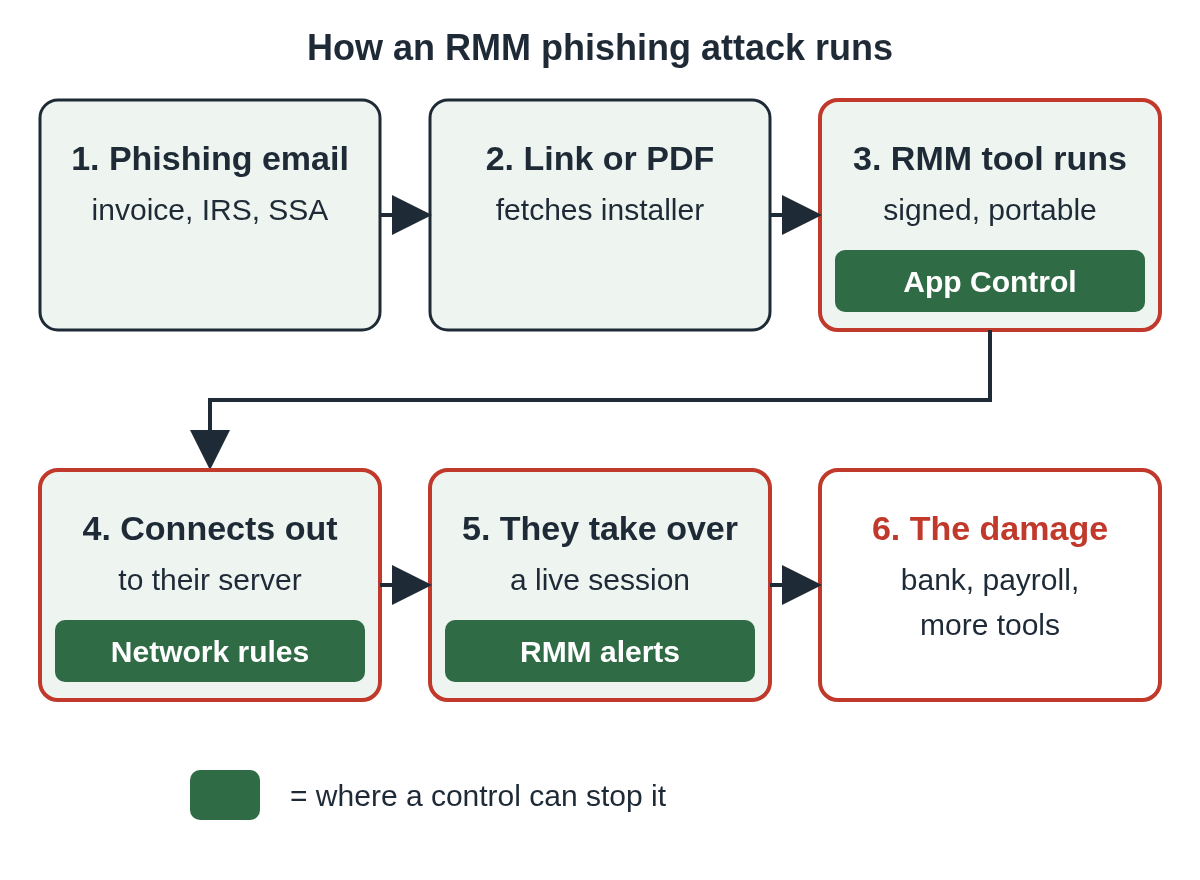
Step 1: decide which remote tool is allowed
You can't block "unauthorized" tools until you've written down the authorized one. CISA's first mitigation is an audit of remote access tools, to find out which RMM software is in use and which is approved.
Keep the list short: one tool for the help desk, one for the MSP if it's different, and a named owner for each. Record the publisher (the code-signing certificate), the server or tenant address your instance uses, and which machines should have it. Everything not on that list is unauthorized, including a second copy of the same product pointed at someone else's server.
Step 2: block unapproved RMM tools with App Control for Business
CISA recommends application controls that block both installation and execution of unauthorized RMM software, portable versions included. On Windows that means App Control for Business (formerly Windows Defender Application Control), with AppLocker for finer rules per user or group. Microsoft says AppLocker still gets security fixes but no new features and doesn't meet its servicing criteria for a security feature, so App Control should do the main enforcement.
A few practical points:
- Start in audit mode. Both App Control and AppLocker can log what they would have blocked without stopping it, which shows you the legitimate tools you forgot about.
- Write rules on the publisher, not the file path. Portable RMM tools run from Downloads or Temp, so path rules miss them. A publisher rule matches any copy with that signature, wherever it runs from.
- Deny the publishers of RMM products you don't use. If your help desk uses one product, there's no reason for other vendors' remote tools to run on a laptop.
- Cover installers and scripts, not only executables. Proofpoint saw tools delivered as compressed MSI files, and AppLocker rules can cover executables, scripts, Windows Installer files, DLLs and packaged apps.
If attackers use the same product you use, a publisher rule can't tell your instance from theirs. That gap gets closed at the network layer.
Step 3: control where remote tools can connect
CISA's advice is to allow authorized RMM tools only from inside the network or through approved remote access such as a VPN or VDI, and to block inbound and outbound connections on common RMM ports and protocols at the network perimeter.
For the tool you keep, limit outbound traffic to your own server or tenant where the product allows it. For the rest, block their cloud and relay domains at your DNS filter or web gateway. Proofpoint suggests network detections such as the Emerging Threats ruleset to alert on traffic to RMM servers, which catches tools that slip past the endpoint rules.
Step 4: alert on any RMM tool that starts anyway
Blocking will have gaps. CISA advises reviewing logs for RMM execution, especially portable executables behaving in unusual ways, and using security software that can spot RMM tools loaded only in memory.
Signals worth an alert:
- An RMM process starting from a user's Downloads or Temp folder.
- A new remote access service on a machine that has never had one.
- App Control or AppLocker audit events that name a remote access product.
- Connections to an RMM vendor's cloud from a host that isn't on your approved list.
Send these to whoever is on call, not to a weekly report. A session that's live now needs someone now. CISA and its partners cover detection in more depth in the Guide to Securing Remote Access Software.
Step 5: tell staff what the real help desk will never do
People install these tools because a convincing email or caller told them to. Give them one rule in writing: IT will never email a link to install remote support software, and will never call and ask you to install one. Then make reporting easy, with one address or channel and no blame.
The same rule covers chat. Our post on Microsoft Teams IT help desk scams shows how attackers pose as the help desk in an external Teams chat to get a Quick Assist session. For staff who want the plain version, share the ScreenConnect and ConnectWise scams guide.
What to do if you find an unauthorized RMM tool
Treat it as a live intrusion until you know otherwise.
- Disconnect the machine from the network, or isolate it with your EDR.
- End the session and stop the tool, then record the install path, the server it connected to and the times.
- Ask the user what they were told, and whether they logged in to a bank, payroll or email during the session.
- Reset that user's passwords from a clean device, and revoke their sessions and tokens.
- Look for other remote tools or new accounts added for persistence. CISA warns that access gained this way can be sold on to other criminals.
- Report it to CISA at report@cisa.gov or (888) 282-0870, and to the FBI at ic3.gov.
If the person affected was at home rather than at work, send them our two-minute checklist and the guide on what to do after a remote access scam.
Adding an approval step for each connection
Application control and network rules decide which tools can run and where they can connect. They help less when the attacker uses the same product you approved, or talks a user into a session. Xcelcor Guardian adds a check at the moment of connection on Windows 11 PCs: every new remote connection (ScreenConnect, AnyDesk, TeamViewer, Quick Assist, RDP and others) is held until the account holder approves it by email or on xcelcor.com, and the PC itself only has a Refuse button. Requests nobody answers are dropped after 10 minutes. It lowers the risk alongside your other controls; it isn't antivirus and doesn't see screens or files. Business is $60 per PC a year with a 5 PC minimum, and there's a Guardian for business page and a program for MSPs.
More posts for admins and help desks are on the IT and help desk hub.
Questions people ask
What is an RMM tool?
Remote monitoring and management software that IT teams and MSPs use to support and manage computers from a distance, such as ScreenConnect, Atera or AnyDesk. Attackers use the same tools because they're signed and trusted.
Will antivirus catch an attacker's RMM tool?
Often not. Proofpoint notes the installers are usually signed, legitimate software, so antivirus and network tools may let them through. Application control and alerts on RMM activity fill that gap.
How do I block portable AnyDesk or ScreenConnect that runs without admin rights?
Use App Control for Business with publisher rules. A publisher rule matches the signed file wherever it runs from, including Downloads or Temp, so it catches portable copies that path rules miss.
Our MSP uses ScreenConnect. Should we block it?
No. Allow it by publisher, then limit its connections to your own instance at the network layer, so a copy pointed at someone else's server can't connect.
Sources
- CISA, NSA and MS-ISAC: Protecting Against Malicious Use of Remote Monitoring and Management Software (AA23-025A)
- CISA and partners: Guide to Securing Remote Access Software
- Proofpoint: Remote monitoring and management (RMM) tooling increasingly an attacker's first choice (March 7, 2025)
- Microsoft Learn: App Control for Business and AppLocker overview
Reviewed by Kevin Mercer, Site & Ops, on .
Last updated