How to find unauthorized ScreenConnect instances on your company's PCs
Every ScreenConnect client names the server it reports to. Here's how to read it, and what to do when it isn't yours.
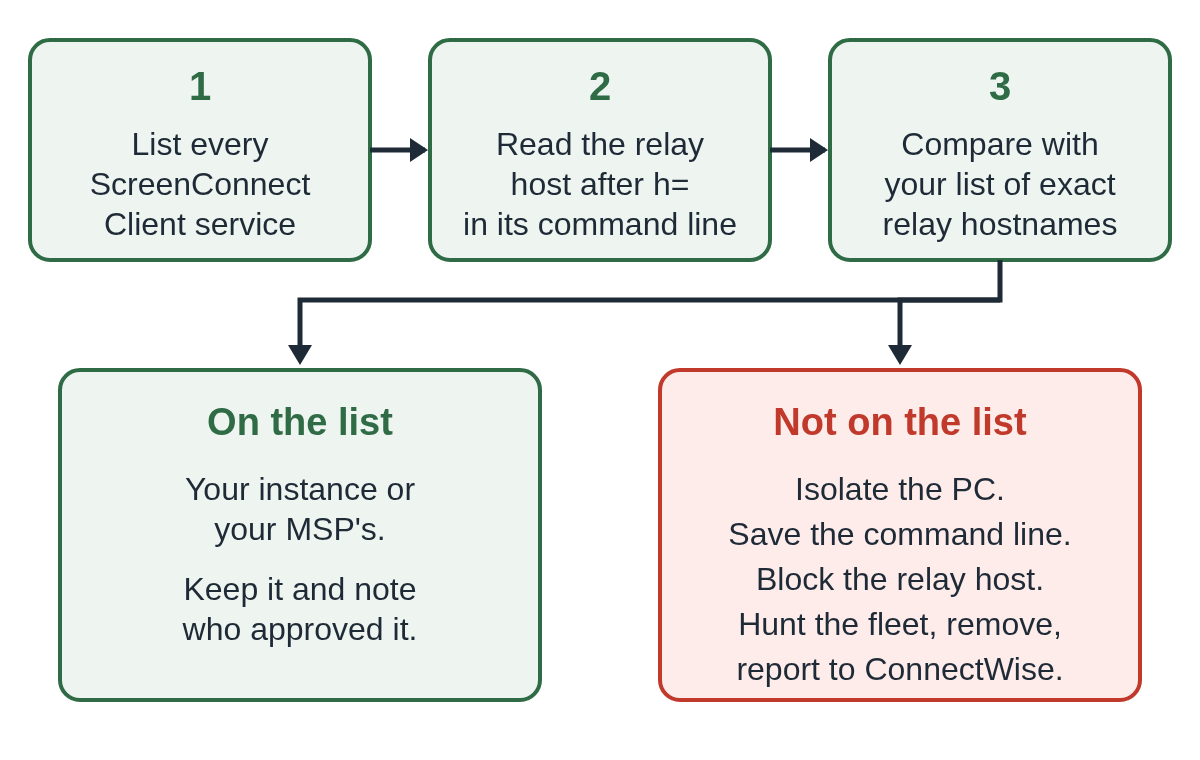
To find unauthorized ScreenConnect instances, list every ScreenConnect client service on your Windows machines and read the relay host in its command line (the value after h=). Any client whose relay isn't one you run, or one your MSP runs, belongs to someone else's instance. Treat that machine as reachable by an outsider until you prove otherwise.
The software being signed by ConnectWise tells you nothing here. A rogue client is the same signed binary as yours, pointed at a different server.
Why ScreenConnect is hard to spot in a fleet
ScreenConnect is normal software in a lot of companies. If you or your MSP use it, an alert on "ScreenConnect installed" fires all day and gets tuned out. That's exactly the cover an attacker wants.
CISA's joint advisory on malicious use of remote monitoring and management (RMM) software names ScreenConnect and AnyDesk as the tools used in a refund-scam campaign against federal staff, launched as portable executables that needed no admin rights. The lures haven't changed much since. Huntress's 2025 roundup of rogue ScreenConnect cases describes fake Social Security statements, invitation letters and invoices that download a renamed ScreenConnect client. Two campaigns we covered this month do the same: the "EFT Wire Transfer" email and the Power BI "Download Reference" page.
So the question isn't "is ScreenConnect here?". It's "which ScreenConnect server does each client answer to?".
Where does a ScreenConnect client say which server it uses?
An installed client runs as a Windows service named ScreenConnect Client ( followed by a hex code and ). The service starts ScreenConnect.ClientService.exe with a query string on its command line. That string includes h=, the relay host the client connects to, and p=, the port.
Elastic's published detection rule for new ScreenConnect servers pulls the relay out with this pattern, which is a good reference for the format:
e=Access&y=Guest&h=<relay host>&p=<port>
The code in brackets differs between instances, so it can help you group clients that came from the same place. The relay host is what you actually compare against your records.
How to list ScreenConnect clients with PowerShell
On a single machine, this lists every ScreenConnect client service, its state and the relay host:
Get-CimInstance Win32_Service -Filter "Name LIKE 'ScreenConnect Client%'" | Select-Object Name, State, StartMode, @{n='Relay';e={ if ($_.PathName -match '[?&]h=([^&]+)') { $Matches[1] } }}
Run it across the fleet through your RMM, Intune remediation scripts, or Invoke-Command, and collect the output in one place. Group by relay host. You should end up with a short list: your own instance, maybe your MSP's, and anything else.
If you have EDR, search process starts for ScreenConnect.ClientService.exe and for binaries signed by "ConnectWise, LLC", and extract the same h= value. That catches clients that were installed and then removed, which an inventory script run today won't see.
How to tell your own instance from a rogue one
Build an allowlist of exact relay hostnames, not domains. This matters more than it sounds.
Elastic's rule skips any relay ending in .screenconnect.com, because that's ConnectWise's own cloud. That's a reasonable noise filter for spotting self-hosted rogue servers, but anyone can sign up for a ScreenConnect cloud instance. A rogue cloud instance has a relay ending in .screenconnect.com too. If your allowlist says "anything on screenconnect.com is fine", it will pass an attacker's cloud trial.
Then check each relay that isn't on the list:
- An IP address instead of a hostname is a strong sign it isn't yours. Elastic's triage notes say the same.
- A relay that appears on one machine only, recently, usually means one person ran one installer. Look at what that user downloaded and opened that day.
- A relay that appears on many machines at once is either a rollout someone forgot to tell you about, or a campaign. Ask before you assume.
- A client running from a user-writable folder, like Downloads or AppData, rather than Program Files, points to a portable or user-launched copy.
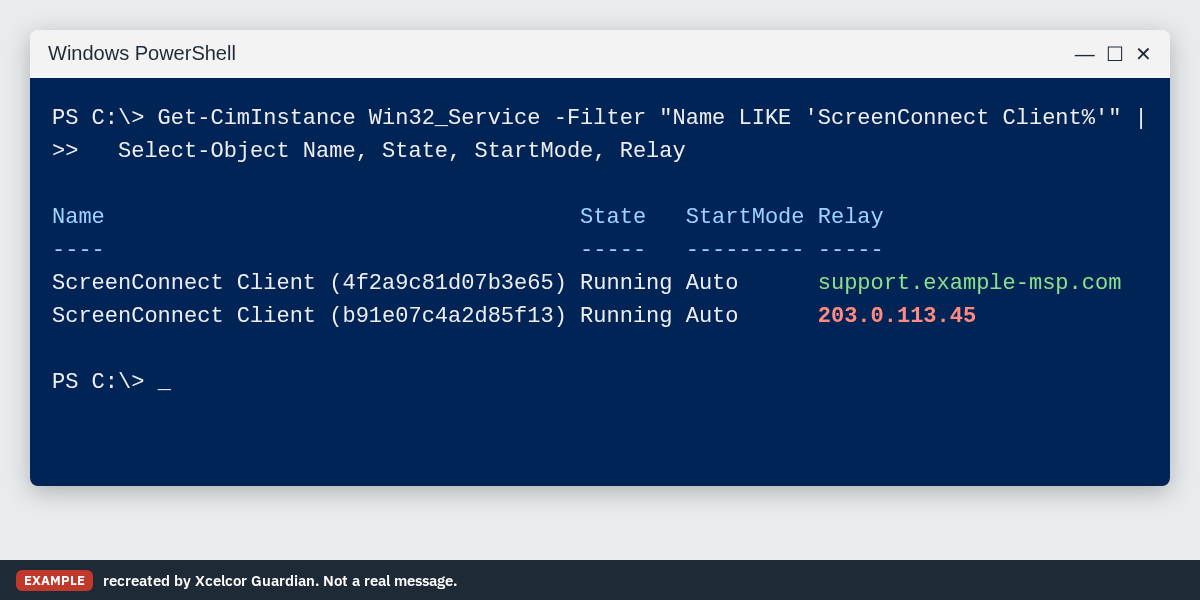
What a rogue client looks like next to yours
In a service listing, two ScreenConnect clients look almost the same. The service names differ only by the code in brackets, and both binaries carry ConnectWise's signature. The relay host is the only line that gives it away.
I found one. What now?
Assume someone outside can connect to that machine right now. ScreenConnect runs as a service, so it keeps listening after the user closes whatever window they saw.
- Isolate the machine from the network through your EDR, or pull it off the network.
- Before you uninstall, save the service's command line, the install folder path and the installer file if it's still in Downloads. You'll want the relay host and the file name for the report and for blocking.
- Block the relay host at your DNS filter or firewall, so any other machine with the same client can't reach it.
- Search the whole fleet for that relay host and for the same code in the service name.
- Uninstall the client, then check the rest of the installed apps and scheduled tasks on that machine for anything that arrived the same day.
- Reset the user's passwords from a clean device and review sign-ins to email and finance systems. Anything the user did while the client was installed could have been watched.
- Report the instance to ConnectWise through its report-abuse page, with the instance URL or relay host.
If the person at the keyboard is on the phone with "support" while you're reading this, our two-minute checklist covers the first steps for them. For the employee's side of the story, the ScreenConnect scams guide explains how the installer usually arrives and how to remove it at home.
How to stop the next one before it installs
Finding rogue clients is cleanup. Prevention is mostly the controls in CISA's advisory: audit which RMM tools you actually use, allowlist those with application control (including portable versions), and block the rest. Our post on how to block unauthorized RMM tools walks through that side.
The hard case is the one you can't block outright: your own help desk depends on ScreenConnect. Xcelcor Guardian lowers the risk there. Your own technicians can be allowed every time, while other remote connections (AnyDesk, TeamViewer, Quick Assist, ScreenConnect, RDP and others) wait until a named person approves them, and each request is logged with who approved it. It works alongside your EDR rather than replacing it. See Guardian for business.
More posts for IT teams and MSPs are on the IT and help desks page.
Questions people ask
Is every ScreenConnect client on a work PC a threat?
No. Many companies and MSPs use ScreenConnect every day. A client is a problem when its relay host isn't one you or your provider run.
Can I allow anything that connects to screenconnect.com?
No. Anyone can open a ScreenConnect cloud instance, so a rogue client can use a relay ending in screenconnect.com too. Allow exact relay hostnames.
Where do I report a rogue ScreenConnect instance?
Report it to ConnectWise through its report-abuse page with the instance URL or relay host. If money was lost, also report it to the FBI at ic3.gov.
Sources
- CISA, NSA and MS-ISAC: Protecting Against Malicious Use of Remote Monitoring and Management Software (AA23-025A)
- Elastic Security: Newly Observed ScreenConnect Host Server (prebuilt detection rule)
- ConnectWise ScreenConnect: Report suspicious activity
- SOC Prime summary of Huntress research: Rogue ScreenConnect, common social engineering tactics seen in 2025
Reviewed by Thomas Whitmore, Research & Strategy, on .
Last updated