How to disable Quick Assist in Intune: uninstall it, block it, and the Remote Help catch
Two Microsoft-documented ways to shut off Quick Assist on managed PCs, which one to use, and the one setting that also breaks Remote Help.
To disable Quick Assist across an Intune-managed fleet, Microsoft documents two methods: uninstall the app with Get-AppxPackage -Name MicrosoftCorporationII.QuickAssist | Remove-AppxPackage -AllUsers, or block traffic to https://remoteassistance.support.services.microsoft.com. Pick carefully, because Microsoft also says that blocking that endpoint disrupts Intune Remote Help. If you use Remote Help, uninstall Quick Assist and leave the endpoint open. If you don't, do both.
In short:
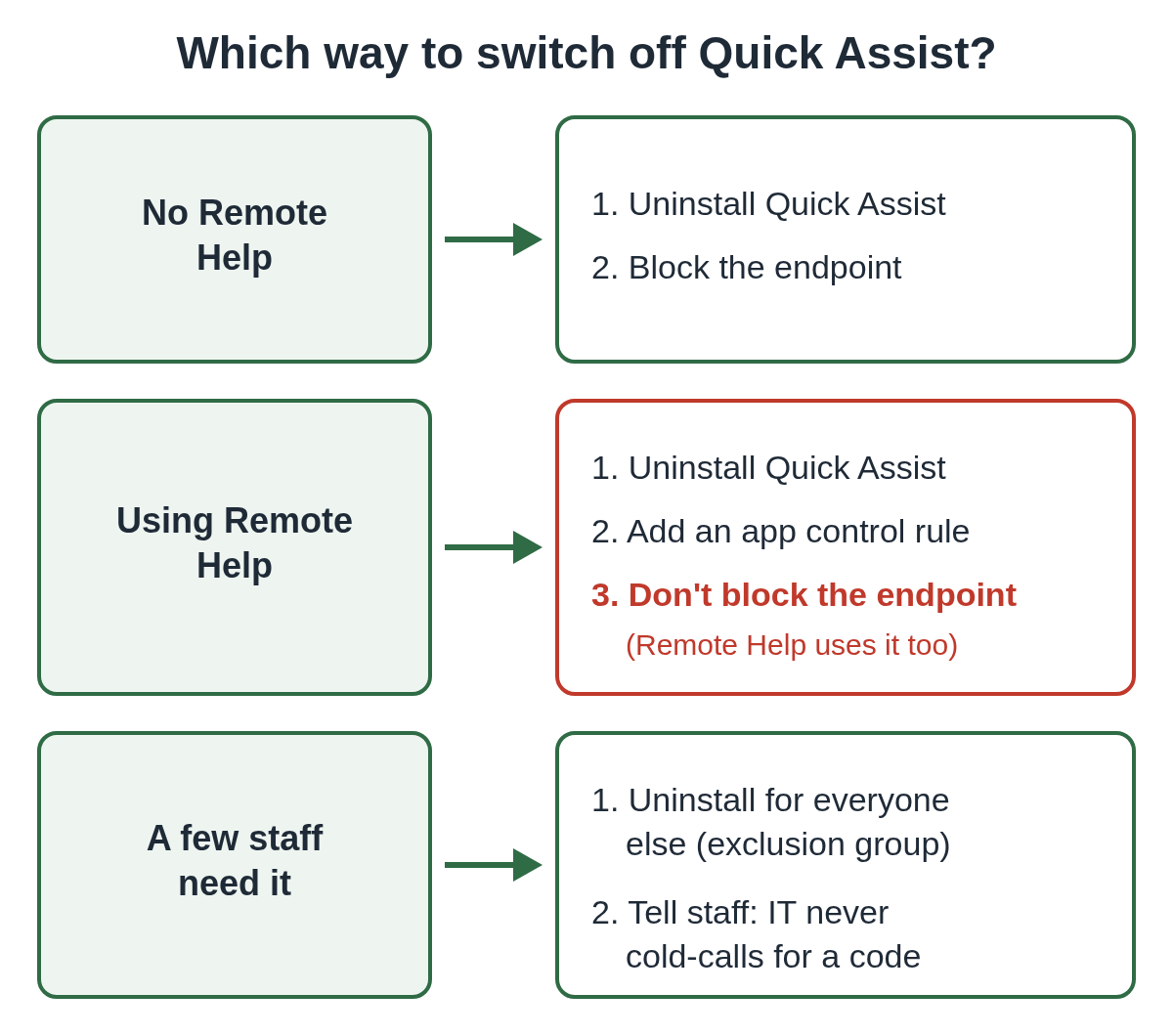
- No Remote Help: uninstall Quick Assist and block the endpoint at your proxy or firewall.
- Remote Help in use: uninstall Quick Assist, add an app control rule, and don't block the endpoint.
- Still need Quick Assist for some staff: keep it for that group only, and control who can connect.
Why IT teams are switching Quick Assist off
Quick Assist is a legitimate Microsoft tool, which is exactly why attackers like it. In May 2024, Microsoft Threat Intelligence described a group it tracks as Storm-1811 flooding a target's inbox with sign-up emails, then phoning the person while posing as IT support and offering to fix the spam. The caller talked the user into pressing Ctrl + Windows + Q, entering a code and allowing control. Microsoft reported that the access led to further tools and, in some cases, Black Basta ransomware.
CISA's Black Basta advisory (AA24-131A, updated November 8, 2024) lists Microsoft Quick Assist among the tools affiliates used and says they asked users to download remote access tools such as AnyDesk or Quick Assist. Since then, the same pattern has moved into chat. See our post on Microsoft Teams IT help desk scams and the live fake "IT Support" Teams alert.
Microsoft's own recommendation in that write-up is to consider blocking or uninstalling Quick Assist and other remote management tools you don't use, and to remove Quick Assist if you've standardized on Remote Help.
Uninstall vs. block: which one does what?
The two methods stop different things, so it helps to be clear about each.
Uninstall removes the app from every user profile on the PC. It's a Microsoft Store app (package name MicrosoftCorporationII.QuickAssist, Store product ID 9P7BP5VNWKX5), so on its own the uninstall doesn't stop someone from getting it back from the Store.
Blocking the endpoint stops sessions from starting at all. Microsoft calls remoteassistance.support.services.microsoft.com the primary endpoint Quick Assist uses to set up a session, and says that once it's blocked, Quick Assist can't be used to get help or give it. That covers reinstalled copies too, as long as the device is behind your filtering.
Microsoft's note is the catch: Remote Help relies on the same endpoint. Block it and Remote Help stops working too.
How do I uninstall Quick Assist with Intune?
Microsoft gives the PowerShell command and says to run it as Administrator:
Get-AppxPackage -Name MicrosoftCorporationII.QuickAssist | Remove-AppxPackage -AllUsersIn Intune, the simplest route is a platform script (Devices, then Scripts and remediations) that runs the command in system context, assigned to a device group. If you'd rather have Intune keep checking, put it in a remediation: a detection script that looks for the package with Get-AppxPackage -AllUsers -Name MicrosoftCorporationII.QuickAssist and exits 1 when it finds it, and the uninstall as the remediation script. Test on a pilot group first, as you would any script that removes software.
For a single PC, the manual path is Settings, then Apps, then Installed apps, then Quick Assist, the three dots, and Uninstall. Our home guide on turning off Quick Assist on Windows 11 Home walks through it for staff who ask.
How do I stop users reinstalling it?
Microsoft's Quick Assist page doesn't describe a way to block a reinstall, so you need a second control.
- Endpoint block (if you don't use Remote Help). Block
remoteassistance.support.services.microsoft.comon your web proxy, secure web gateway or DNS filter. Quick Assist talks over HTTPS on port 443. Remember that this only applies while the device's traffic goes through your filtering. - App control rule. AppLocker supports publisher rules for packaged apps, built from the publisher name, package name and version. A deny rule on the
MicrosoftCorporationII.QuickAssistpackage stops it running even if it comes back. Test this carefully. Microsoft notes that once you have rules in the exe collection, AppLocker blocks packaged apps that no rule allows, so you'll need allow rules for the Store apps you do want.
If your organization already restricts the Microsoft Store, check that the policy also covers this app.
What if we use Remote Help?
Remote Help is Intune's own remote support tool. Both the helper and the user sign in with your organization's Microsoft Entra accounts, so sessions stay inside your tenant, and Microsoft lists role-based access, Conditional Access and session logging among its controls. Microsoft's Remote Help page notes it isn't enabled for Intune tenants by default.
That makes Remote Help the cleaner replacement, with one rule: remove Quick Assist, but don't block the shared endpoint. Use the uninstall plus an app control rule to keep Quick Assist off.
What if some staff still need Quick Assist?
Some help desks rely on Quick Assist for people outside the tenant, or for a small team. In that case, scope the uninstall to everyone else with an Intune exclusion group, and keep the remaining users' guard up:
- Tell staff the help desk never cold-calls or messages them to start a session. Microsoft's guidance is to let a helper connect only when the user contacted IT or Microsoft Support first.
- Make it easy to check: one internal number or channel to verify a "help desk" call.
- Watch for Microsoft Defender's "Suspicious activity using Quick Assist" alert, which Microsoft names in its write-up.
Our post on blocking unauthorized RMM tools covers the same approach for AnyDesk, ScreenConnect and the rest, and help desk social engineering covers the reverse attack, where the caller targets your help desk.
A quick checklist
- Decide: Remote Help, Quick Assist for a few, or neither.
- Deploy the uninstall script or remediation to the target device group.
- Add a second control: the endpoint block (no Remote Help) or an AppLocker or App Control rule.
- Confirm on a test PC that Quick Assist is gone and won't start a session.
- Tell staff that any unexpected "IT" call asking for a code is a reason to hang up and call the help desk back.
Checklist: switching off Quick Assist across your organization (PDF)
If a user has already let someone in, start with what to do after a remote access scam and our two-minute checklist.
Where Xcelcor Guardian fits
For PCs where you keep remote tools installed, Xcelcor Guardian for business holds every new remote connection (Quick Assist, AnyDesk, TeamViewer, ScreenConnect, RDP and others) until an approver you choose says yes, showing which tool is asking. It lowers the risk from a convincing caller; it isn't antivirus and doesn't replace the controls above.
More posts for admins are on the IT and help desks hub.
Questions people ask
Is there a Group Policy setting to disable Quick Assist?
Microsoft's Quick Assist page doesn't list one. It documents two methods: uninstall the app with Get-AppxPackage -Name MicrosoftCorporationII.QuickAssist | Remove-AppxPackage -AllUsers, or block traffic to remoteassistance.support.services.microsoft.com. On domain-joined PCs you can run the uninstall from a startup script and add an AppLocker packaged app rule.
Does blocking Quick Assist break Intune Remote Help?
Blocking the endpoint does. Microsoft's page says Remote Help relies on remoteassistance.support.services.microsoft.com, so blocking it disrupts Remote Help. If you use Remote Help, uninstall Quick Assist instead of blocking the endpoint.
Can users reinstall Quick Assist after you remove it?
Quick Assist is a Microsoft Store app (product ID 9P7BP5VNWKX5), and Microsoft's page doesn't describe a way to prevent a reinstall. If your users can install Store apps, back the uninstall with an app control rule or the endpoint block.
Sources
- Microsoft Learn: Use Quick Assist to help users (Disable Quick Assist within your organization)
- Microsoft Threat Intelligence: Threat actors misusing Quick Assist in social engineering attacks leading to ransomware (May 15, 2024)
- CISA advisory AA24-131A: #StopRansomware: Black Basta (updated November 8, 2024)
- Microsoft Learn: Use Remote Help to assist users authenticated by your organization
- Microsoft Learn: Packaged apps and packaged app installer rules in AppLocker
Reviewed by Thomas Whitmore, Research & Strategy, on .
Last updated